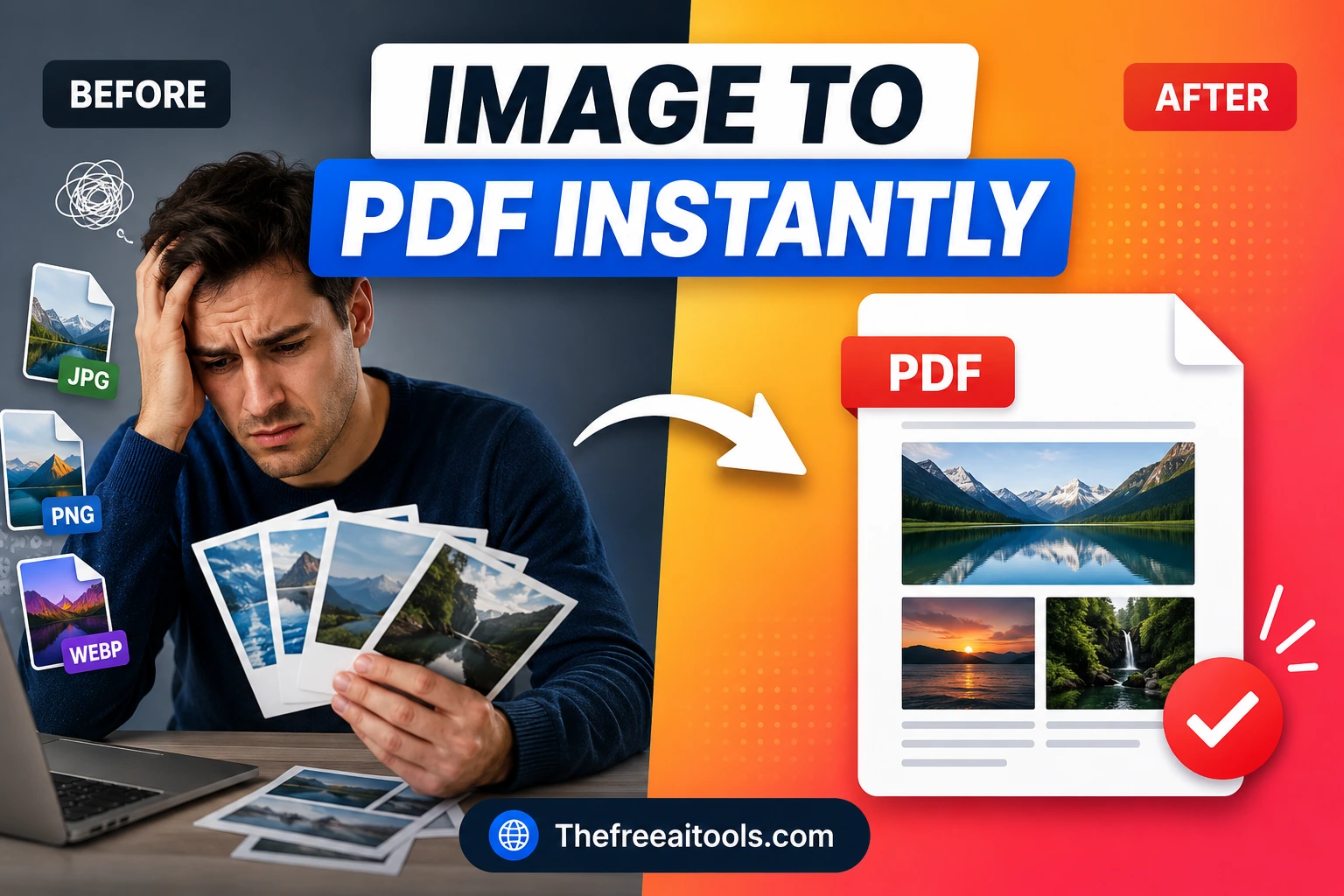
Image to PDF Converter
Combine JPG, PNG, WebP, GIF, BMP, and SVG images into a single PDF - customize page size, orientation, margins, image fit, and background in your browser.
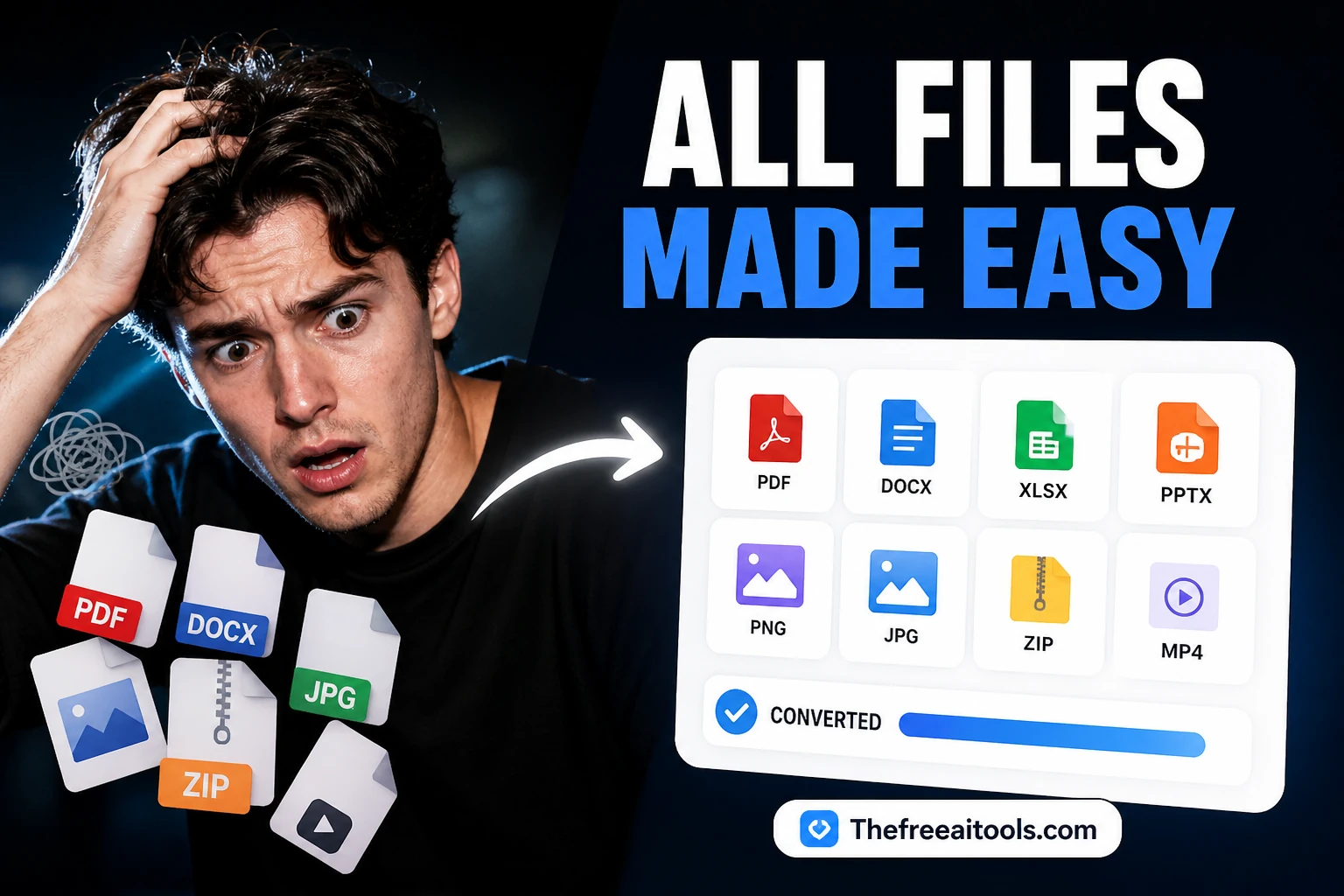
Inspect, split, merge, archive, sanitize, encode, and checksum files — all locally without server uploads.
Converting and inspecting files usually sends you to sites that upload your document to a server, watermark the output, or cap the file size unless you pay. Our free file tools online avoid all of that by doing the work in your browser wherever the format allows — your PDFs, spreadsheets, and documents never leave your device. The collection covers PDF conversion (to and from Word, images, and text), document conversion between formats, CSV and JSON transformation, and image-to-PDF assembly. Because conversion between rich formats is fundamentally lossy — a PDF's fixed layout doesn't map cleanly onto Word's reflowing paragraphs, for example — each tool is honest about what survives the round trip and what needs manual cleanup. Where a tool must use a server for a format the browser can't handle natively, it says so and discards your file immediately after processing.
Combine JPG, PNG, WebP, GIF, BMP, and SVG images into a single PDF - customize page size, orientation, margins, image fit, and background in your browser.
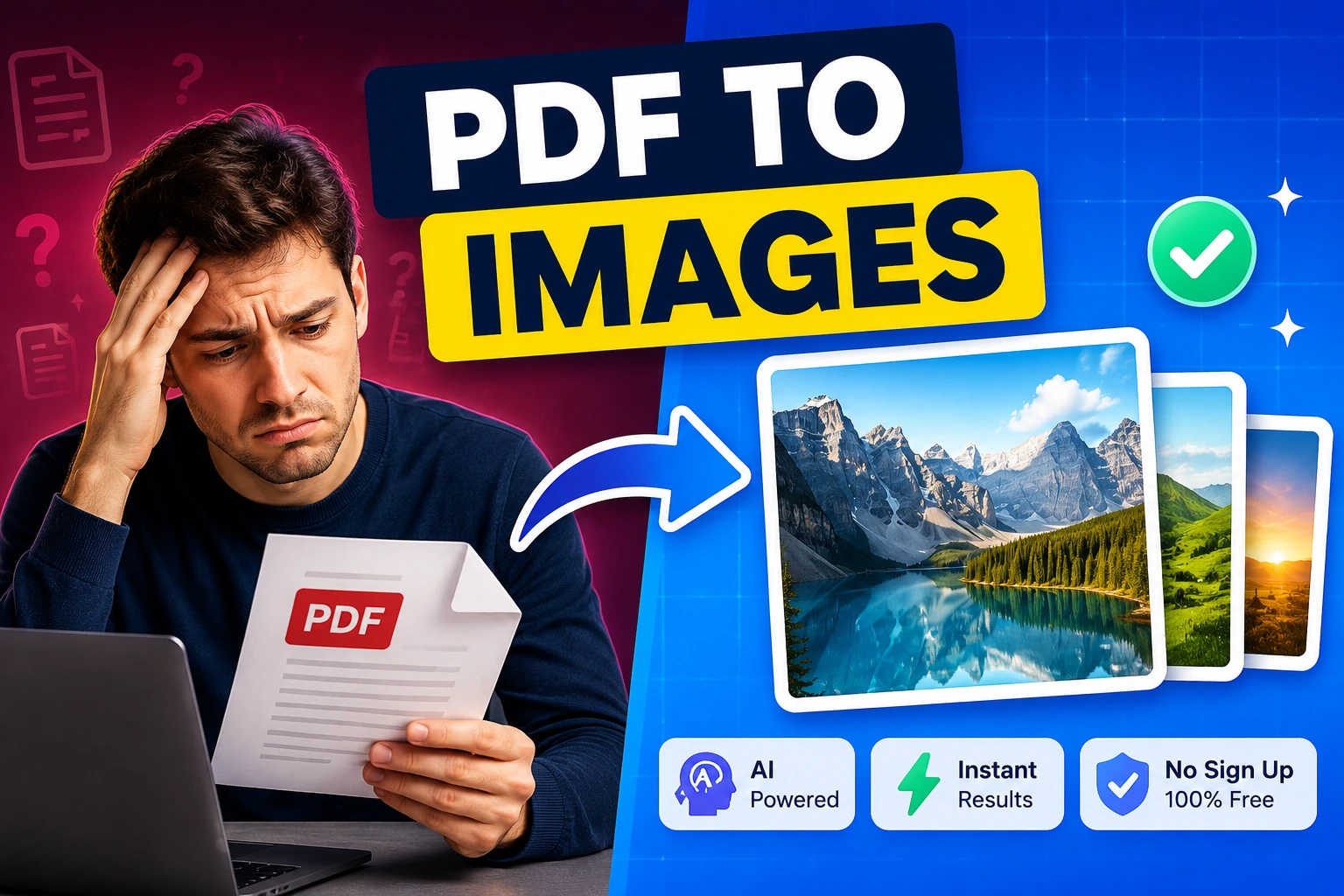
Render every page of a PDF as a high-quality JPG, PNG, JPEG, or WebP image. Custom resolution, page selection, and bulk ZIP download - runs entirely in your browser.
Edit and update PDF files directly in your browser with a fast AI-assisted workflow.
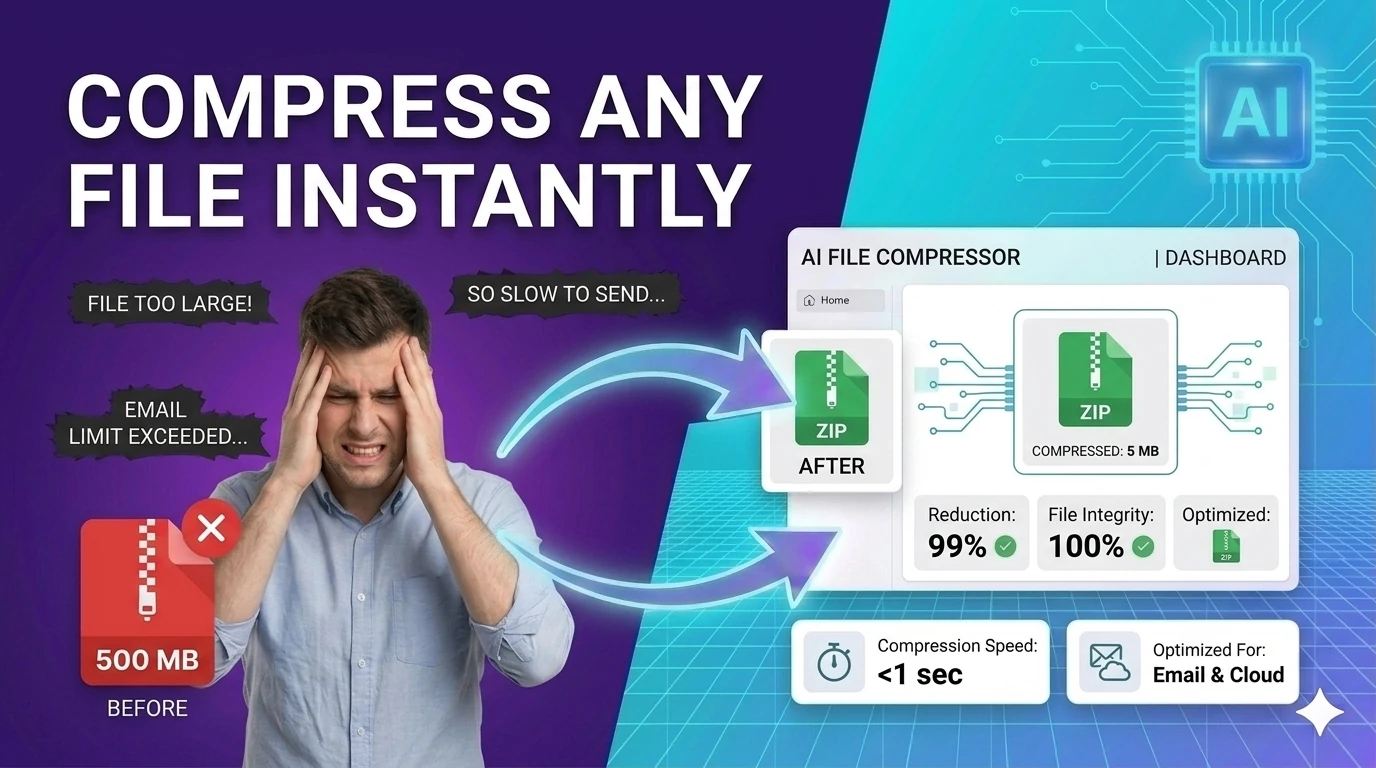
Bundle multiple files into a downloadable ZIP archive locally — no server upload, fully private.
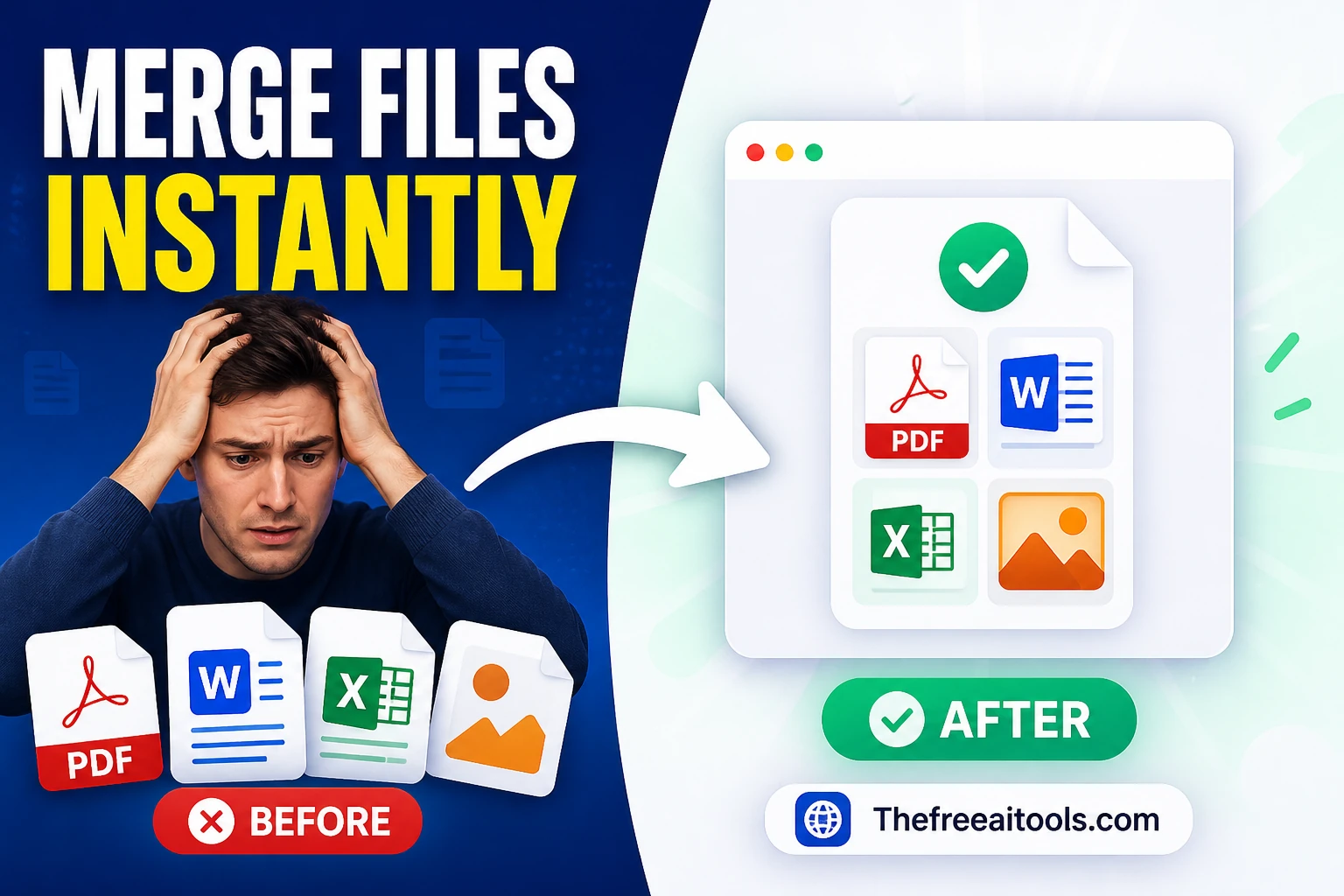
Merge multiple text files into one combined output with separators — concatenate files in seconds.
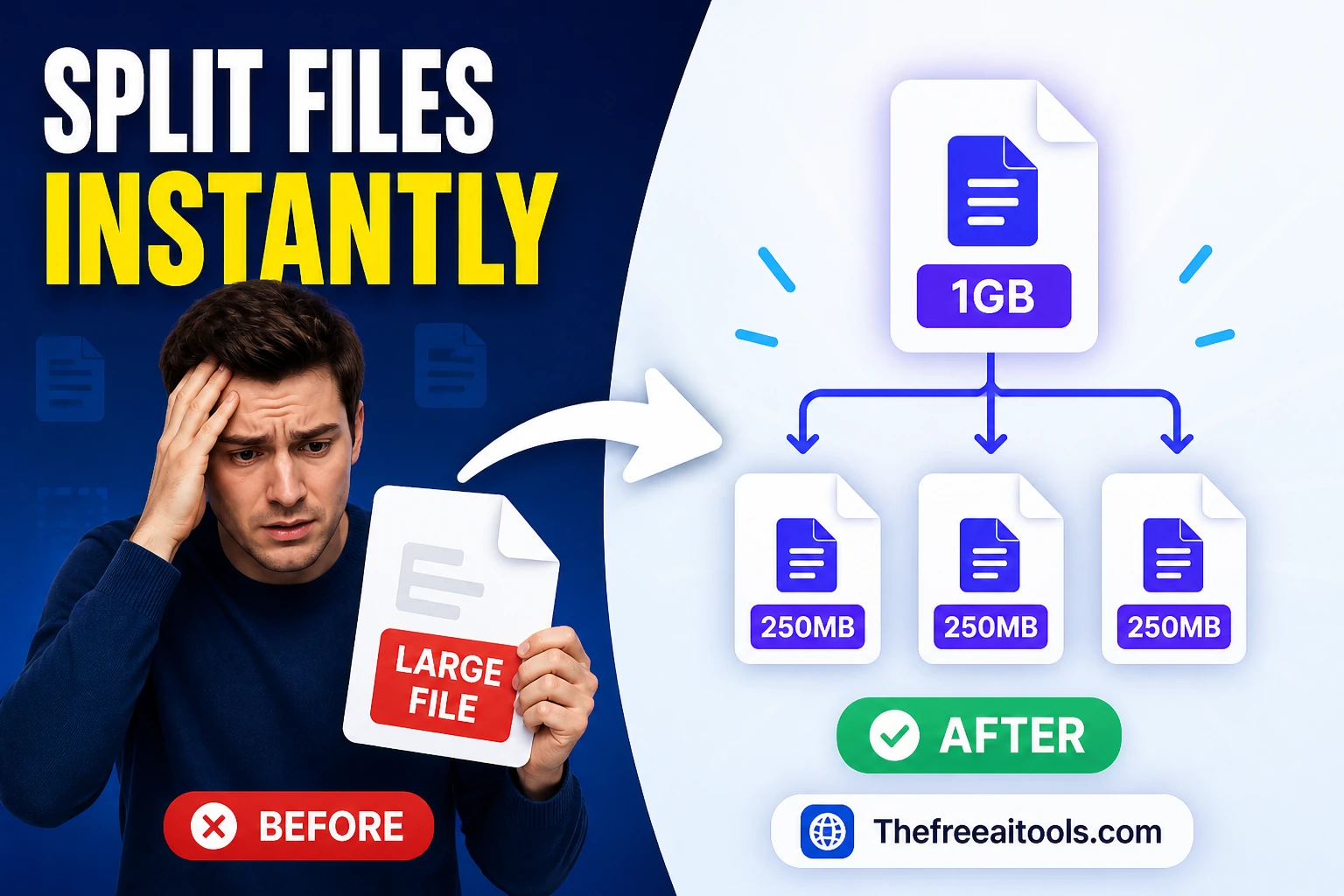
Split text files by line count or approximate chunk size — prepare large files for processing.
Inspect uploaded files for MIME type, extension, and file signature hints — identify unknown files instantly.
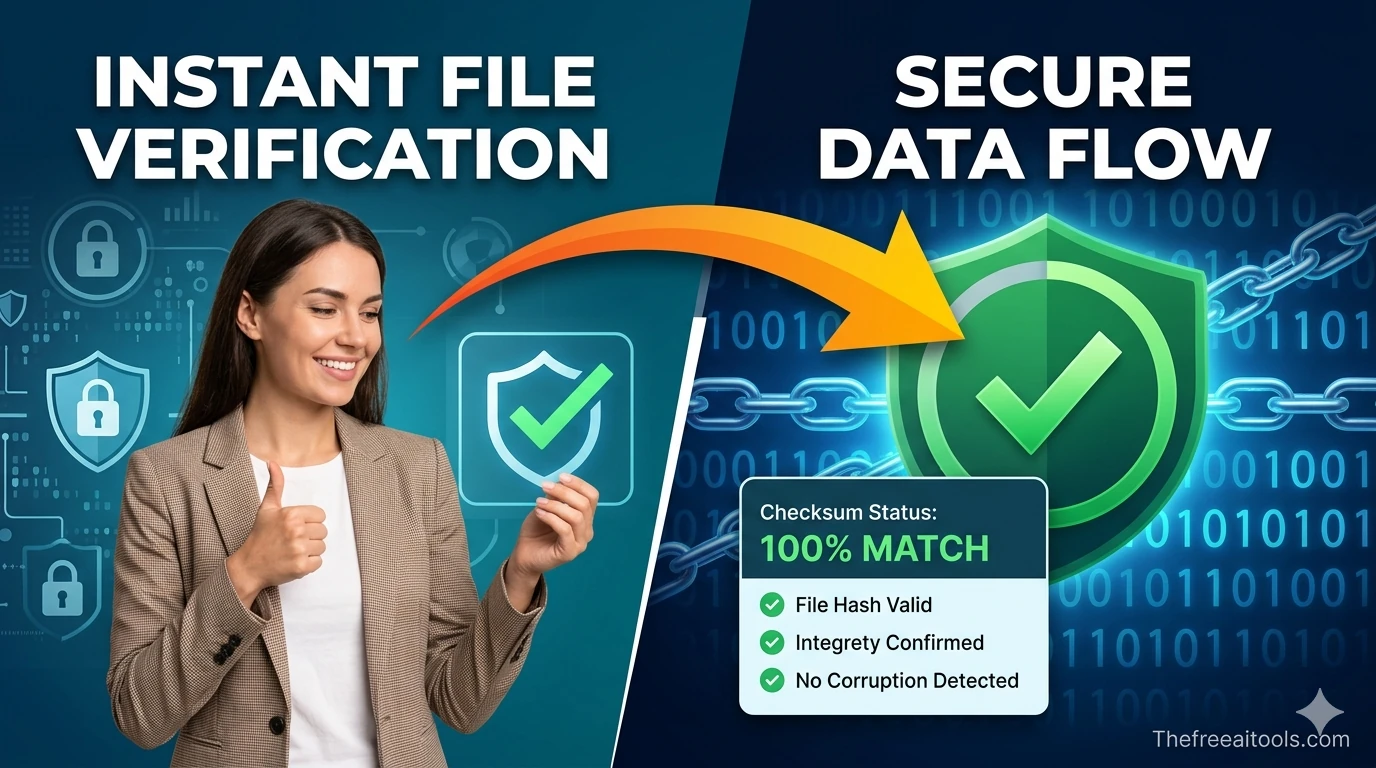
Calculate CRC32, MD5, and SHA-256 checksums for uploaded files — verify file integrity instantly.
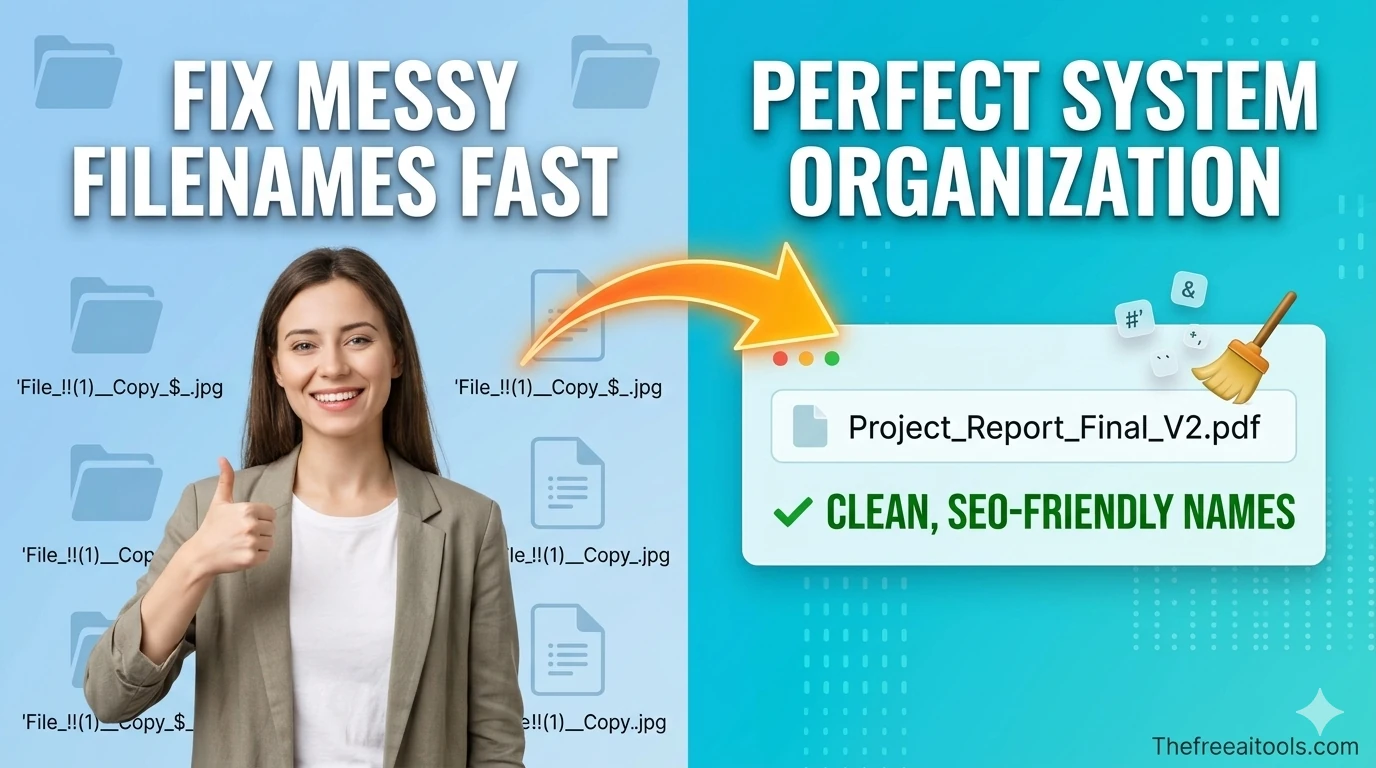
Normalize messy file names for safer downloads, uploads, and archives — remove illegal characters instantly.
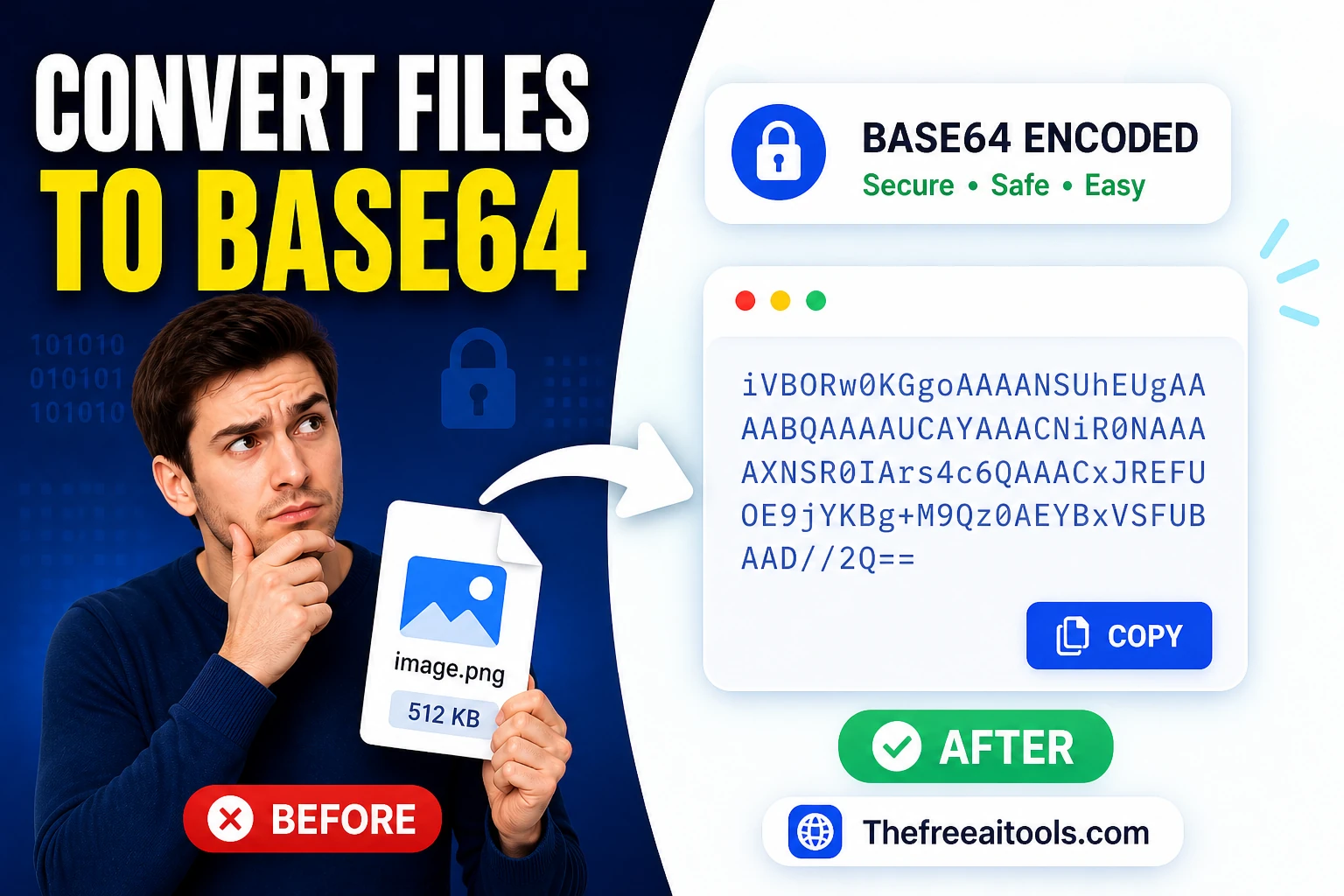
Encode uploaded files to Base64 strings in the browser — convert any file to an inline data URI.
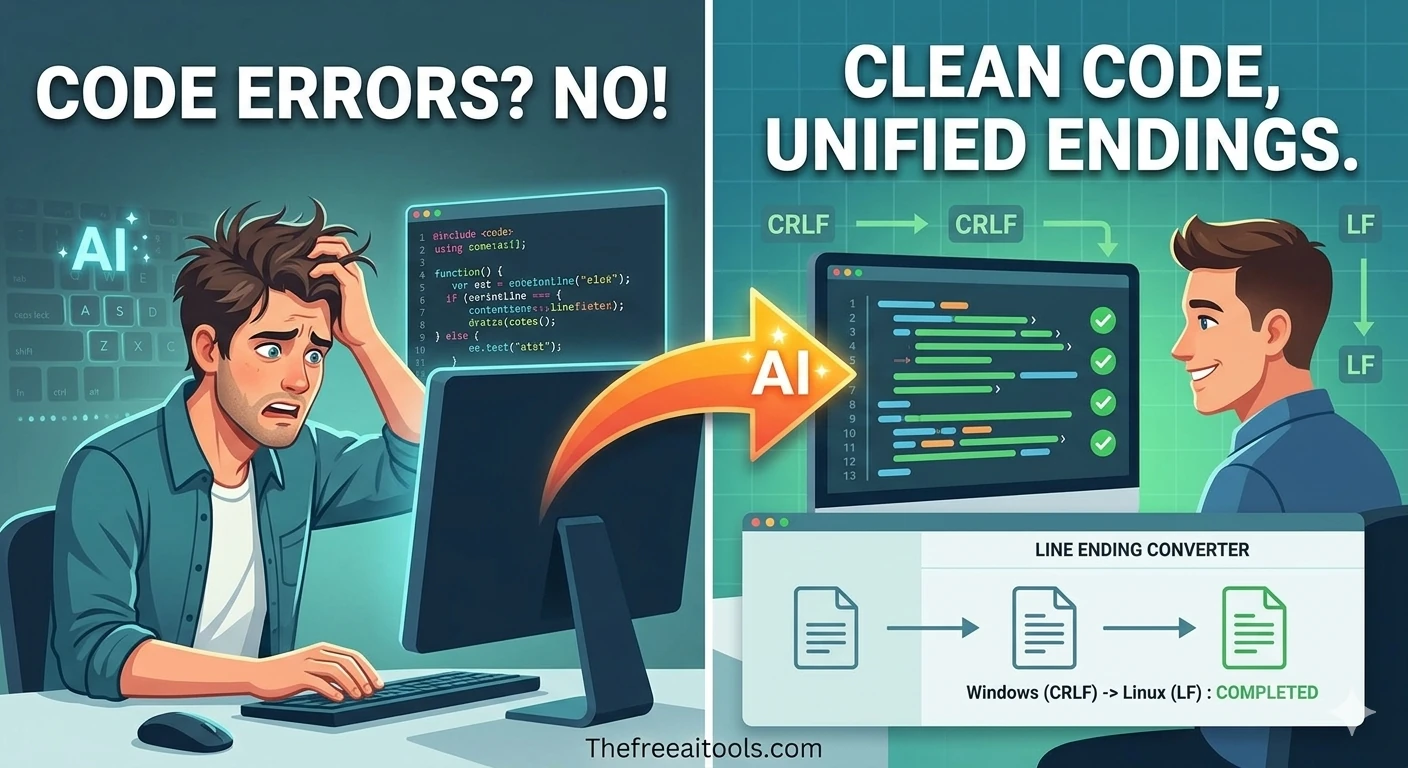
Convert text between LF (Unix) and CRLF (Windows) line endings — fix cross-platform editor issues.
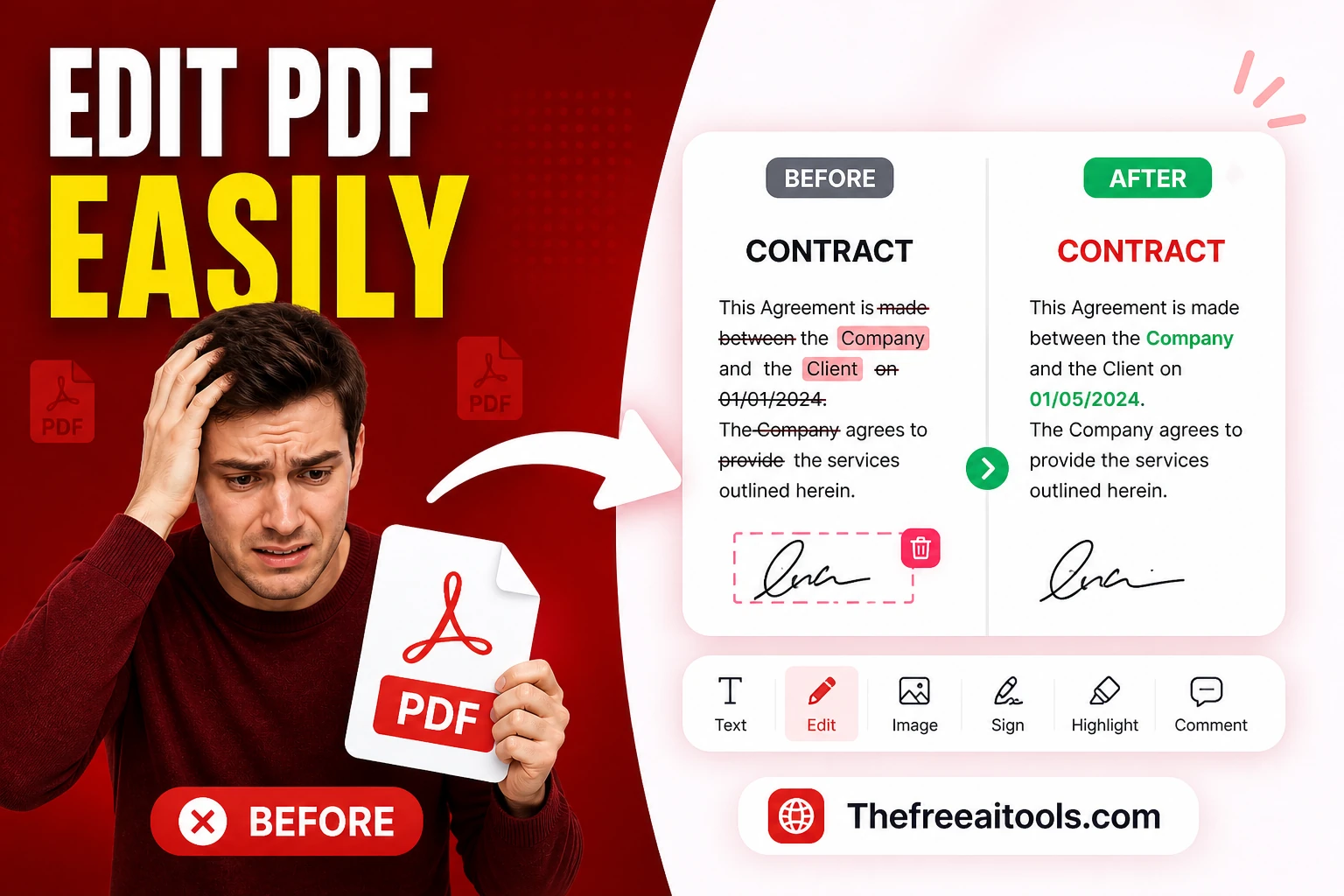
Edit, annotate, and fill PDF files in the browser — no Adobe Acrobat needed, everything runs locally.
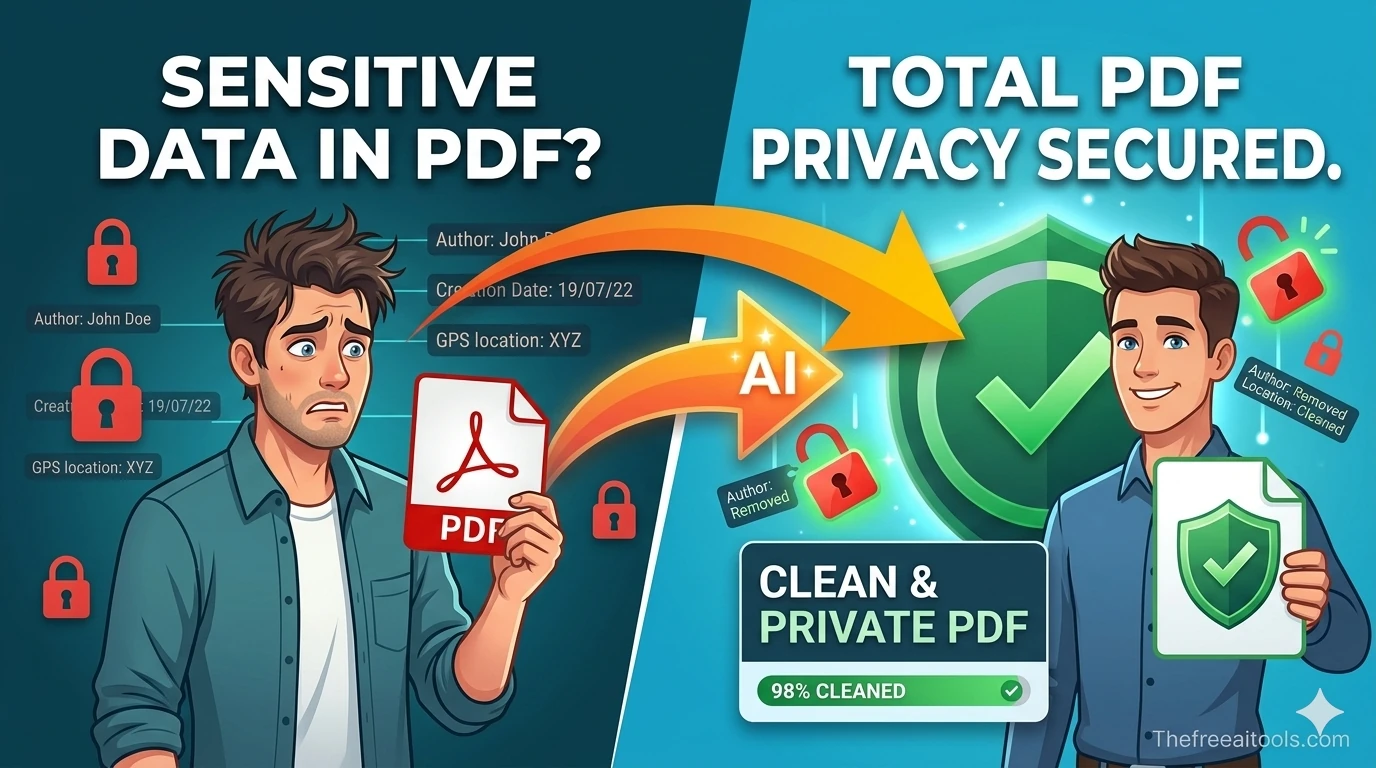
Inspect PDF author, title, subject, timestamps, and hidden metadata before sharing files. It helps teams remove accidental identifiers from proposals, resumes, and reports without sending documents to a server.
Open a PDF editing workflow for quick markup, notes, and in-browser annotations — free PDF annotator.
Convert a PDF to an editable Word document, turn a finished Word file into a shareable PDF, and combine scanned pages into a single PDF. PDF-to-Word works best on text-heavy documents; complex multi-column layouts and tables often need manual fixes afterward.
Convert CSV to JSON for an API import, or JSON back to CSV for a spreadsheet. Watch for type inference issues — a CSV value like '007' may be read as the number 7, and dates can be misparsed, so verify the output when types matter.
Convert text and Word files to PDF so they display identically on every device and can't be accidentally edited. PDF embeds fonts and fixes layout, which is exactly why it's the standard for contracts, invoices, and anything that must look the same everywhere.
Combine photos of receipts or documents into one PDF for expense reports. Use JPEG embedding for photos (smaller files) and PNG for screenshots or line art. For print, target 300 DPI; for screen viewing, 150 DPI keeps the file small.
PDF is a fixed-layout format that describes where each character sits on the page; Word uses reflowing paragraphs. Converting between them requires reconstructing the document's structure, which works well for simple text but struggles with multi-column layouts, tables, and scanned images. Expect to do some manual cleanup on complex documents.
For formats the browser can process natively (most PDF, text, CSV, and JSON operations), everything happens locally and nothing is uploaded. A few conversions involving complex formats use server-side processing — these are labeled, and the file is deleted immediately after the conversion completes.
JPEG uses lossy compression and is ideal for photographs — it produces much smaller files. PNG is lossless and better for screenshots, diagrams, and any image with sharp edges or text, where JPEG would introduce visible artifacts. Choose based on the image content, not habit.
CSV is untyped — everything is text. When converting to JSON, the tool infers types, so '123' becomes a number and 'true' becomes a boolean. This causes problems with leading zeros (zip codes, phone numbers) and IDs. Look for an option to keep all values as strings if type preservation matters.
For on-screen viewing, 72–150 DPI is plenty and keeps file size down. For printing, use 300 DPI so text and images stay crisp. Higher than 300 DPI rarely improves perceptible print quality and just inflates the file.
PDF can embed fonts, which is why it preserves appearance across devices. When converting to PDF, standard system fonts embed reliably; unusual or licensed fonts may be substituted if they can't be embedded. Stick to common fonts if exact appearance is critical.
Hand-picked sets of free tools and guides related to file tools.
224+ browser-based tools across 13 categories — all free, no sign-up required.