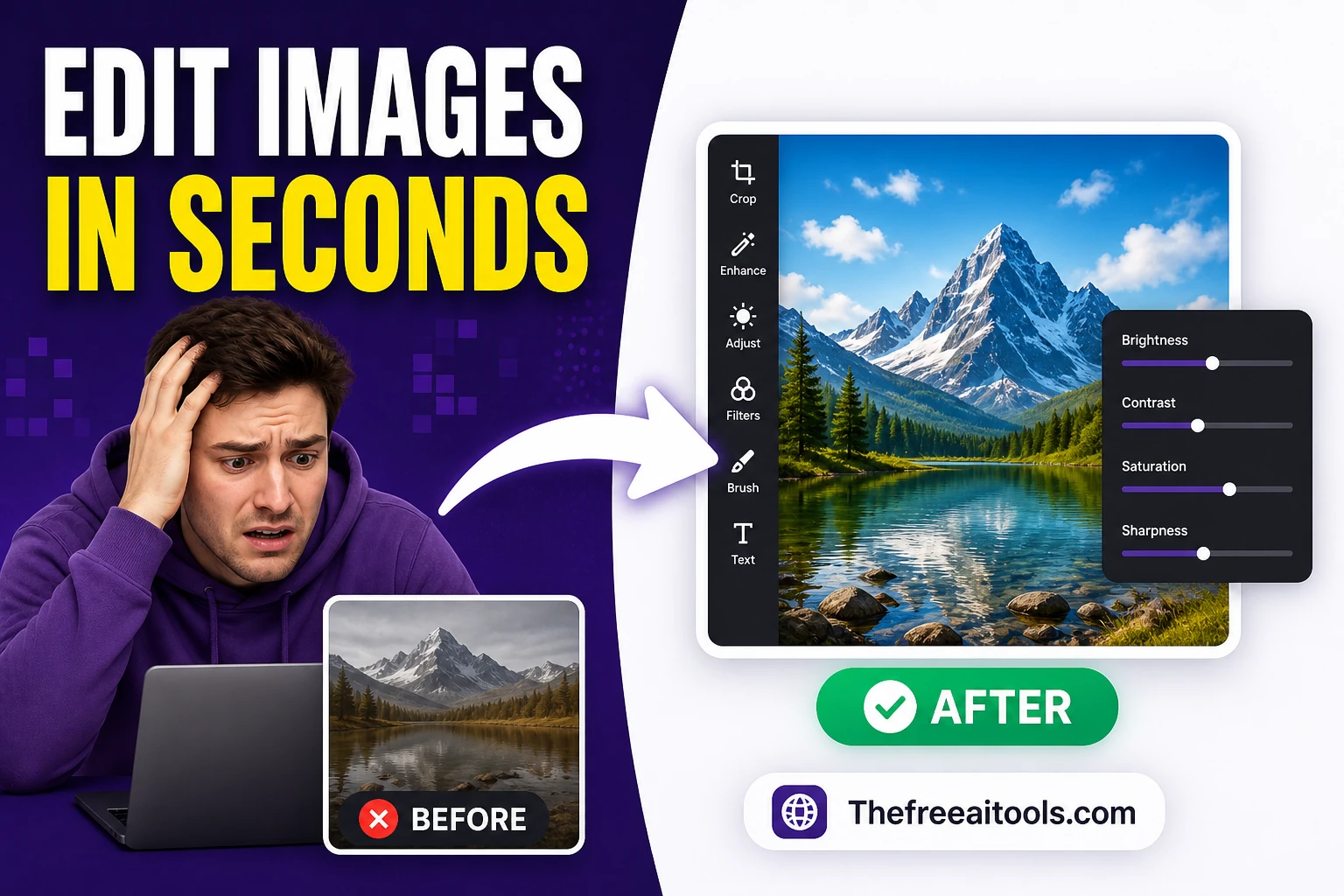
What browser-based image editing handles well
Browser image editors use the HTML Canvas API for pixel operations — the same rendering engine that powers web graphics. Tasks that work well: cropping and resizing (Canvas scaling is fast and accurate), brightness and contrast adjustments (pixel-level arithmetic, no quality loss beyond the rounding inherent in 8-bit channels), rotating and flipping (lossless for 90° increments, slight quality loss for arbitrary angles due to interpolation), and adding text or simple shapes as overlays.
These are the tasks that represent 80% of everyday image editing needs — resizing a photo for a blog post, cropping a product shot, adding a watermark, or adjusting the exposure on a screenshot. For these, a browser tool is fast enough and produces acceptable output without installing software.
Where browser editors fall short of desktop software
- Layer-based compositingDesktop tools like Photoshop and GIMP work with non-destructive layers — you can adjust, mask, and reorder elements at any time. Most browser editors flatten operations to the Canvas on each step, making changes permanent. The only exception is purpose-built browser tools like Photopea, which implements full layer support.
- 16-bit and RAW filesBrowser Canvas operates in 8-bit per channel (0–255 per RGB channel). 16-bit images from professional cameras are downsampled on import, losing precision in highlights and shadows. RAW files require a dedicated decoder that browsers don't include.
- Large files (>50 MB)Browser memory limits can cause the tab to crash when working with very large source images, especially during operations that require multiple copies of the image in memory simultaneously.
Always keep your original
The most important rule for any image editing workflow: never overwrite your original file. Save edited versions as new files with descriptive names (e.g., hero-cropped-1200x630.jpg). This is especially important in browser editors where many operations are destructive — once you flatten a canvas or close the tab, the intermediate state is gone. Keep originals in their highest-quality format (PNG or original JPEG before any re-compression) and export final versions at the target quality.