Image ToolsFree online toolNo account requiredNo server uploadUpdated April 28, 2026

Free Image Compressor Online - Smaller Files, No Upload

Reduce image file size in the browser so web pages, blog posts, product pages, and uploads feel lighter and faster.

Free Online Image Compressor

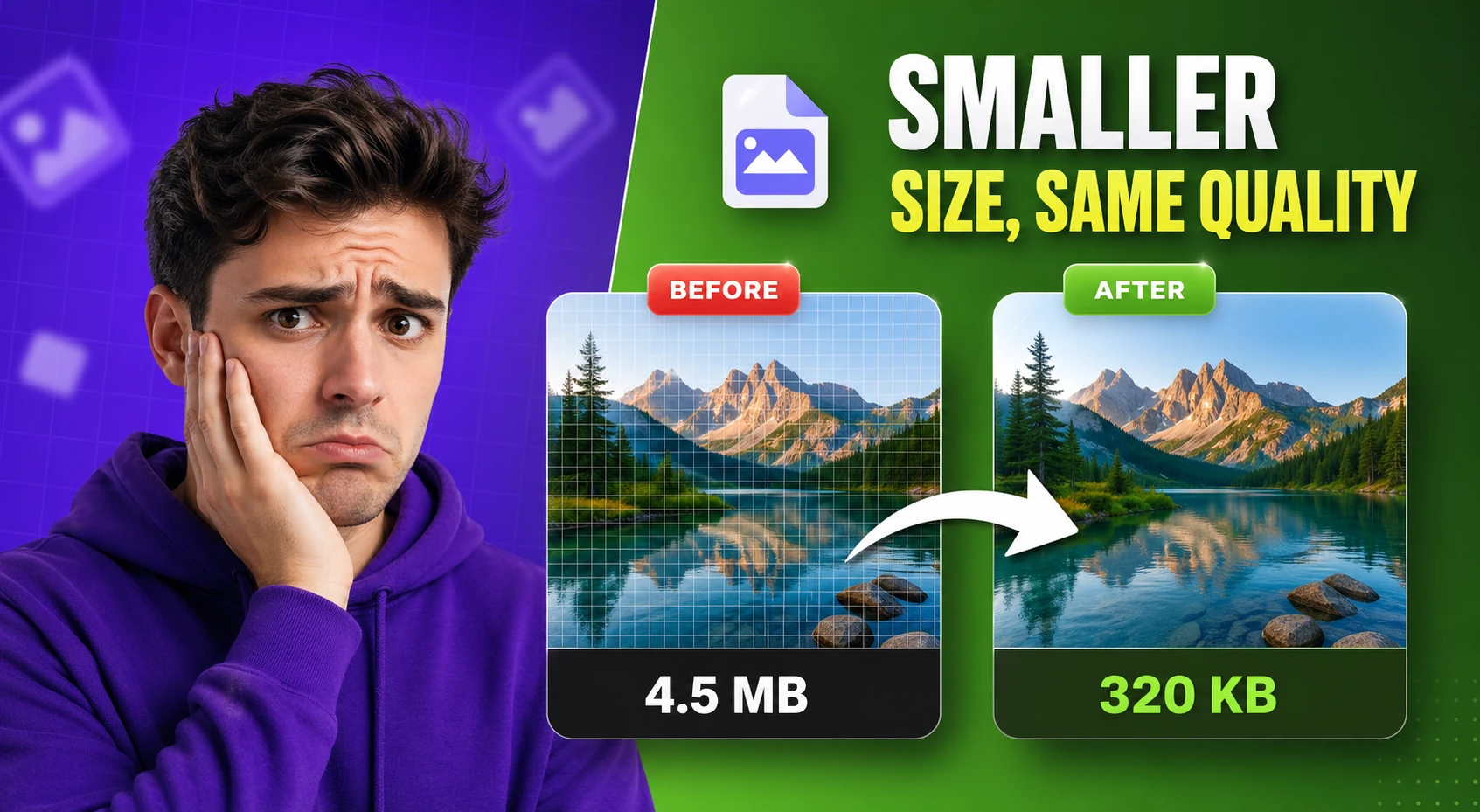
Quickly reduce the file size of your images without sacrificing visual quality. Optimize your JPG, PNG, and WebP files instantly right in your browser for faster website loading speeds and easier sharing.

Original Image
Compression & Output
80%

Lower quality equals smaller file sizes. 80% is usually the best balance for web images.

No Output Yet

Upload an image and adjust the quality slider to see the results.


What is an Image Compressor?

An image compressor is a utility designed to shrink the file size of digital graphics. Large images can drastically slow down website load times, consume excess server bandwidth, and quickly fill up your device's storage. This free tool allows you to visually compress images on the fly by adjusting their quality level. All compression happens client-side in your web browser, ensuring your private photos are never uploaded to remote servers.

How to Compress Images Online

Optimize your visual assets in three simple steps:

1

Upload Your Image

Drag and drop your high-resolution image into the upload area. The tool fully supports standard web formats including JPEG, PNG, and WebP.

2

Adjust Compression

Use the quality slider to find the perfect balance between file size and visual clarity. Watch the live savings metric update as you tune the image.

3

Download Result

Once you achieve the desired file size reduction, click the download button to instantly save the optimized image directly to your local device.

Key Features

Instant Processing

By utilizing the HTML5 Canvas API, images are compressed dynamically in your browser without the lag of uploading and downloading to an external server.

Live Savings Metric

See exactly how many kilobytes or megabytes you are saving in real-time. The tool automatically calculates the percentage of file size reduced.

100% Privacy Focused

Your files remain entirely on your device. We never transfer, track, or save your uploaded images, providing absolute privacy for personal and corporate files.

Frequently Asked Questions (FAQ)

Will compressing an image reduce its quality?

It depends on the compression level. Lossy formats like JPEG discard some pixel data to save space. However, subtle reductions in quality (e.g., setting the slider to 80%) are typically imperceptible to the human eye but yield massive file size savings.

Why isn't my PNG compressing much?

PNG is a lossless format, meaning the standard encoding preserves every single pixel. To achieve significant file size savings for web usage, it is highly recommended to convert large photographs from PNG to JPEG or WebP formats.

Why are optimized images important for SEO?

Search engines like Google heavily prioritize page speed when ranking websites. Heavy, unoptimized images cause pages to load slowly, frustrating users and negatively impacting your Core Web Vitals score.

Is there a maximum file size limit?

Because this tool processes everything client-side using your computer's memory, the limit depends entirely on your browser. Generally, images up to 20MB are processed instantly without any issues.

Can I compress images on my mobile phone?

Yes! The Image Compressor tool is fully responsive and supports touch interfaces. You can easily upload images directly from your iPhone or Android camera roll and compress them on the go.

What is Image Compressor?

Image Compressor is designed for everyday image optimization jobs where the original file is simply too heavy. Upload an image, adjust the compression quality, preview the result, and download a smaller copy without opening a desktop editor for a quick one-off task.

That makes it useful for marketers, ecommerce teams, bloggers, creators, and support staff who need lighter assets for publishing. On this page the workflow is especially practical because you can compare the original against the compressed result and immediately see how much file size you saved.

This is the kind of task that shows up constantly in real work: compress a product photo before uploading it to Shopify, reduce a screenshot before sending it to support, or shrink a blog image before publishing. A browser-based compressor handles those jobs quickly while keeping the file on your device.

How to use Image Compressor in 3 steps
  1. 1

    Upload the image you want to optimize

    Start with a PNG, JPG, JPEG, or WebP file from your device and confirm the original preview looks right.

  2. 2

    Adjust quality until the tradeoff feels right

    Move the quality slider and compare the preview so you can balance visible quality against a smaller file size.

  3. 3

    Download the lighter version

    Save the optimized output and use it in your CMS, storefront, email, or asset library once the size reduction looks good.

Key features and benefits
  • Reduces file size for faster page loads and easier uploads
  • Lets you control the balance between visual quality and weight
  • Shows the compressed output before you download it
  • Calculates savings so the tradeoff is easier to judge
  • Works well for blog images, product photos, screenshots, and social assets
Common use cases

A blogger compresses a 2 MB featured image before uploading it to a new article so the page loads faster and the CMS upload feels lighter.

An ecommerce manager optimizes product shots for collection pages where dozens of images appear at once and oversized files can slow the browsing experience down.

A support or marketing teammate reduces a screenshot before attaching it to an email, help center article, or social post where smaller files are easier to send and reuse.

Why browser-based works better

A browser-based compressor is faster for small publishing jobs than opening a heavyweight image editor. You can test quality settings and export a lighter asset from the same page in a minute or two.

It is also a better fit for internal screenshots and client materials when you do not want to upload them to a remote service just to make the file smaller.

Image Compressor FAQs

Quick answers about the workflow, privacy, and where this tool fits in a broader job.

Does this tool change the image format?

Yes. This workflow exports a compressed JPG copy so you can reduce file size quickly for common web publishing use cases.

Will transparent PNG areas stay transparent?

No. Because the export is JPG-based, transparency will be flattened. Use a PNG- or WebP-preserving workflow if transparent areas matter.

Should I resize the image too?

If the dimensions are larger than the page actually needs, resizing is often the next best step after compression for additional savings.

Keep the workflow moving with nearby tools that solve the next likely step.

Reviewed by

The Free AI Tools Editorial Team

Editorial review and product QA

Last updated:

Need policy details? Visit the contact, privacy, and security pages linked in the site footer.