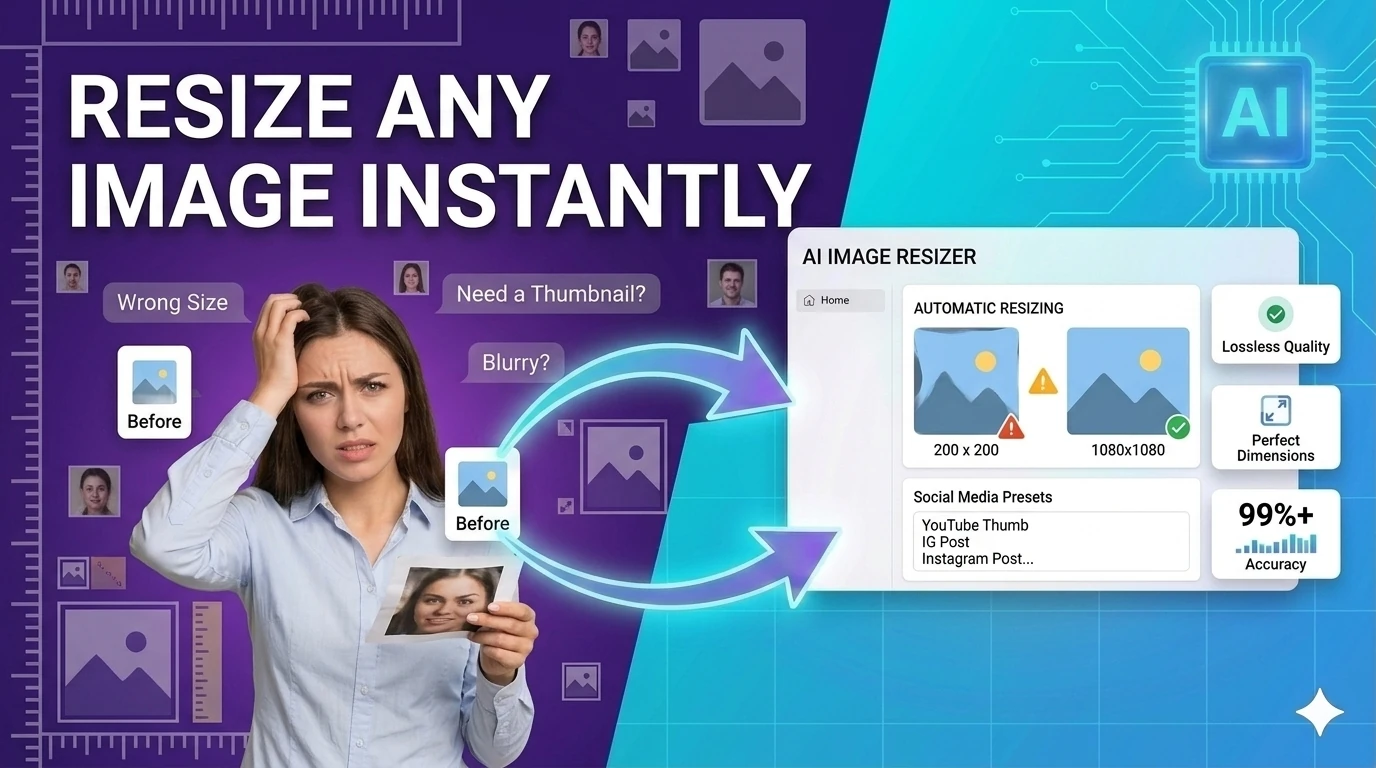
Resize Image for Instagram Free — Social Media Sizes, No Upload

Resize image for Instagram, LinkedIn, Twitter — free online resizer, no upload

Need to resize a photo to 1080×1080 for an Instagram post, 1080×1920 for a Story, or 1200×627 for LinkedIn? Enter the target dimensions, download instantly. Works for all social media sizes — JPG, PNG, WebP, GIF supported. No upload to any server. No signup. No watermark.

Quick Answer

What size should I resize my image for Instagram?

Instagram square post: 1080×1080 px. Instagram Story or Reel: 1080×1920 px. Instagram landscape post: 1080×566 px. Enter your target dimensions in the resizer — the tool runs in your browser, no upload needed.

Free Online Image Resizer

Quickly and securely resize your photos for social media, websites, or personal projects. Adjust dimensions accurately while preserving aspect ratios.

1. Upload Image

Drag & drop an image here

or click to browse from your device

Supports JPG, PNG, WEBP, GIF

2. Resize Options

About Our Image Resizer

Whether you are preparing a profile picture, optimizing images for your website to improve loading times, or formatting a graphic for a specific social media platform, our Image Resizer is the perfect tool for the job. Everything processes directly in your browser, meaning your files are never uploaded to our servers, guaranteeing 100% privacy and lightning-fast speeds.

How to Use the Tool

  1. Upload your image: Drag and drop your file or click to select a JPG, PNG, WEBP, or GIF.
  2. Choose a preset: Select a standard size from the dropdown, such as Social Media or Avatar.
  3. Or set custom dimensions: Enter your exact target width and height in pixels.
  4. Maintain Aspect Ratio: Keep the box checked to avoid stretching or distorting your image.
  5. Resize and Download: Click "Resize Image" to preview, then hit "Download" to save your new file.

Key Features

  • High-Quality Rendering: Uses advanced HTML5 Canvas smoothing to ensure crisp, clear results.
  • 100% Browser-Based: Secure client-side processing keeps your data completely private.
  • Instant Previews: See exact dimension changes and a visual preview before you download.
  • Format Retention: Automatically saves in the same extension you uploaded (e.g., keeps PNG transparency).

Frequently Asked Questions (FAQ)

Does resizing an image reduce its quality?

Making an image smaller usually retains excellent quality while reducing the file size. However, enlarging an image past its original dimensions can cause it to become blurry or pixelated. We use high-quality canvas smoothing to minimize quality loss.

Are my images saved on your servers?

No. This Image Resizer is built with modern browser technologies. All processing happens locally on your device. Your photos are never uploaded, stored, or viewed by anyone else.

What does "Maintain aspect ratio" mean?

The aspect ratio is the proportional relationship between the width and height of your image. Keeping this checked ensures that when you change the width, the height automatically adjusts so your picture doesn't look stretched or squished.

What file formats are supported?

Our tool supports all standard web image formats, including JPEG (.jpg), PNG (.png), WebP (.webp), and GIF (.gif). The tool attempts to export your resized photo in the same format you uploaded.

Is this tool free to use?

Yes! Our Image Resizer is 100% free with no hidden fees, watermarks, or usage limits. You can resize as many images as you need.


Exact image sizes for every social media platform (2026)

Platform & formatRecommended sizeAspect ratioNotes
Instagram — square post1080×1080 px1:1Displayed at 510×510 in feed; upload at 1080 for crisp retina
Instagram — portrait post1080×1350 px4:5Maximum vertical space in feed — more engagement than square
Instagram — landscape post1080×566 px1.91:1Minimum 1080×566; cropped to this if wider
Instagram — Story / Reel1080×1920 px9:16Full-screen vertical; keep main content in center 1080×1420
Instagram — profile photo320×320 px1:1Displayed as circle; keep face/logo centered
LinkedIn — post / share image1200×627 px1.91:1Also correct size for og:image link preview
LinkedIn — profile photo400×400 px1:1Minimum 200×200; 400×400 recommended
LinkedIn — cover / banner1584×396 px4:1Displayed at narrower widths on mobile — keep text centered
Twitter / X — post image1200×675 px16:9summary_large_image card; side-by-side posts use 600×335
Twitter / X — profile photo400×400 px1:1Displayed as circle
Twitter / X — header image1500×500 px3:1Cropped on mobile — keep key content in center
Facebook — post image1200×630 px1.91:1Also used for link preview og:image
Facebook — story1080×1920 px9:16Same as Instagram Story
YouTube — thumbnail1280×720 px16:9Minimum 640×360; 1280×720 recommended for HiDPI
Pinterest — pin1000×1500 px2:3Taller pins get more feed space; 1:2.1 is max ratio

Enter the target width and height from this table into the resizer above, upload your photo, and download. All resizing runs in your browser — no upload, no signup.

Common image dimensions by use case

Use caseRecommended sizeNotes
Blog hero image1200×630 pxAlso works as og:image for social sharing
Twitter/X post image1200×675 px (16:9)summary_large_image card
LinkedIn post image1200×627 pxAppears as link preview thumbnail
Instagram square post1080×1080 pxDisplayed at 510×510 in feed
Instagram story1080×1920 px (9:16)Fills full screen vertically
Product thumbnail (e-commerce)800×800 pxSquare, consistent grid appearance
Avatar / profile photo400×400 pxDownscaled to 40–80px on most UIs
Full-screen background1920×1080 pxHiDPI: 2560×1440 for retina

Why upscaling always degrades quality

Resizing a 400×400 image to 1200×1200 doesn't add detail — it interpolates pixels, producing a blurry result. This is a hard constraint of raster images: information destroyed during capture or prior downscaling cannot be recovered by resizing. The browser Canvas API uses bilinear interpolation by default, which produces smoother edges than nearest-neighbor but still blurs high-contrast detail.

For logos and icons that need to scale up cleanly, use SVG — a vector format that renders at any size without quality loss. This tool handles raster images (JPEG, PNG, WebP). If your source image looks blurry after upscaling, the only real fix is to obtain a higher-resolution source.

Browser resizing vs. server-side pipeline

This tool resizes your image locally using an HTML Canvas element — no upload, no server, instant preview. It's the right choice for one-off resizing tasks. For a website that needs to serve responsive images at multiple breakpoints automatically, use a build pipeline: Next.js Image component, sharp in Node.js, or an image CDN (Cloudinary, Imgix). These generate all sizes at build/request time and serve the appropriate size via srcset — saving bandwidth and improving Core Web Vitals automatically.

TheFreeAITools — Image Resizer is a fully private, browser-based tool that resizes image files to custom pixel dimensions. All processing runs locally on your device using the browser's native Canvas API — your photos never leave your computer. Supports JPG, PNG, WebP, and GIF — making it the fastest free way to resize images for web, social media, and print use in 2026, with no installs, no accounts, and no hidden limits.

Video demo

☕ Support Us